Tablet
controller
A Flutter tablet app for controlling Millie Bot. Manual joystick control, live camera feed, interactive mapping, and AI-powered chat commands.
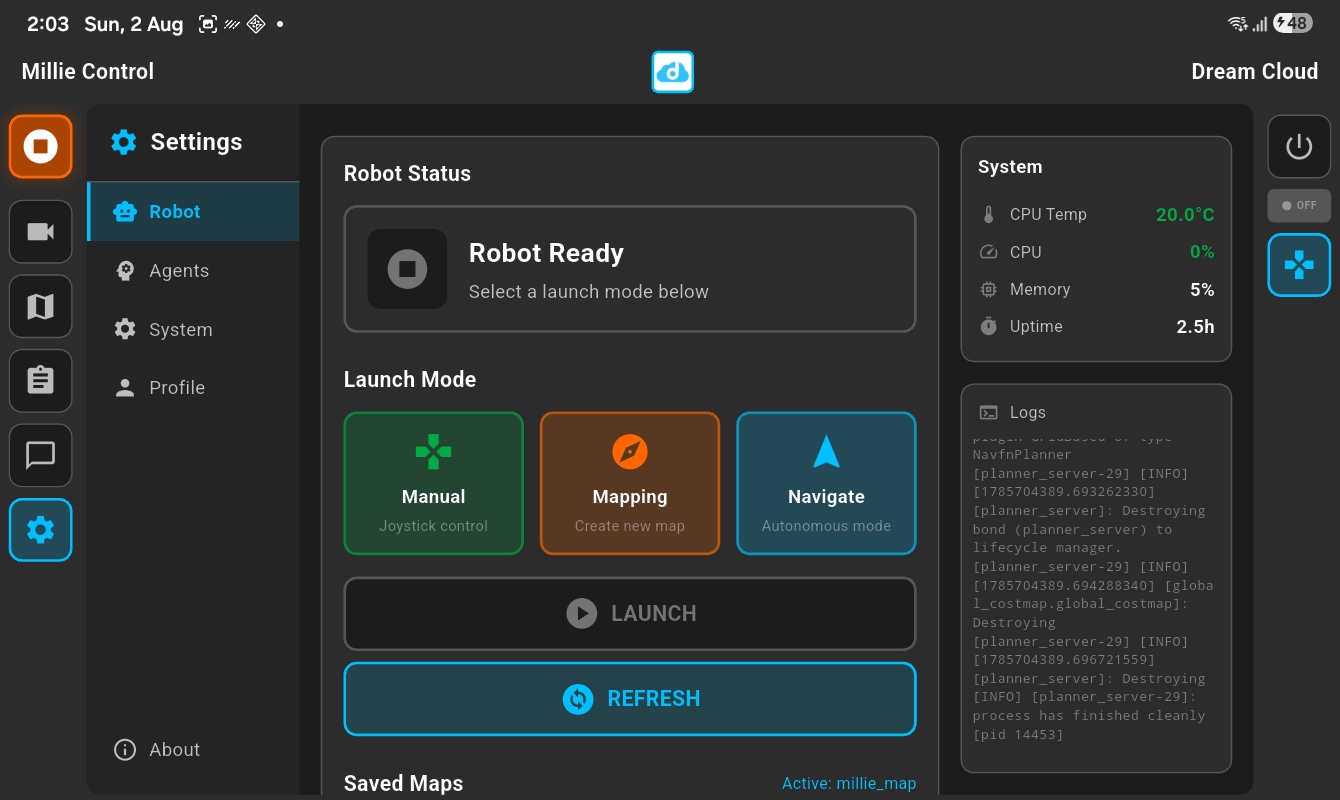
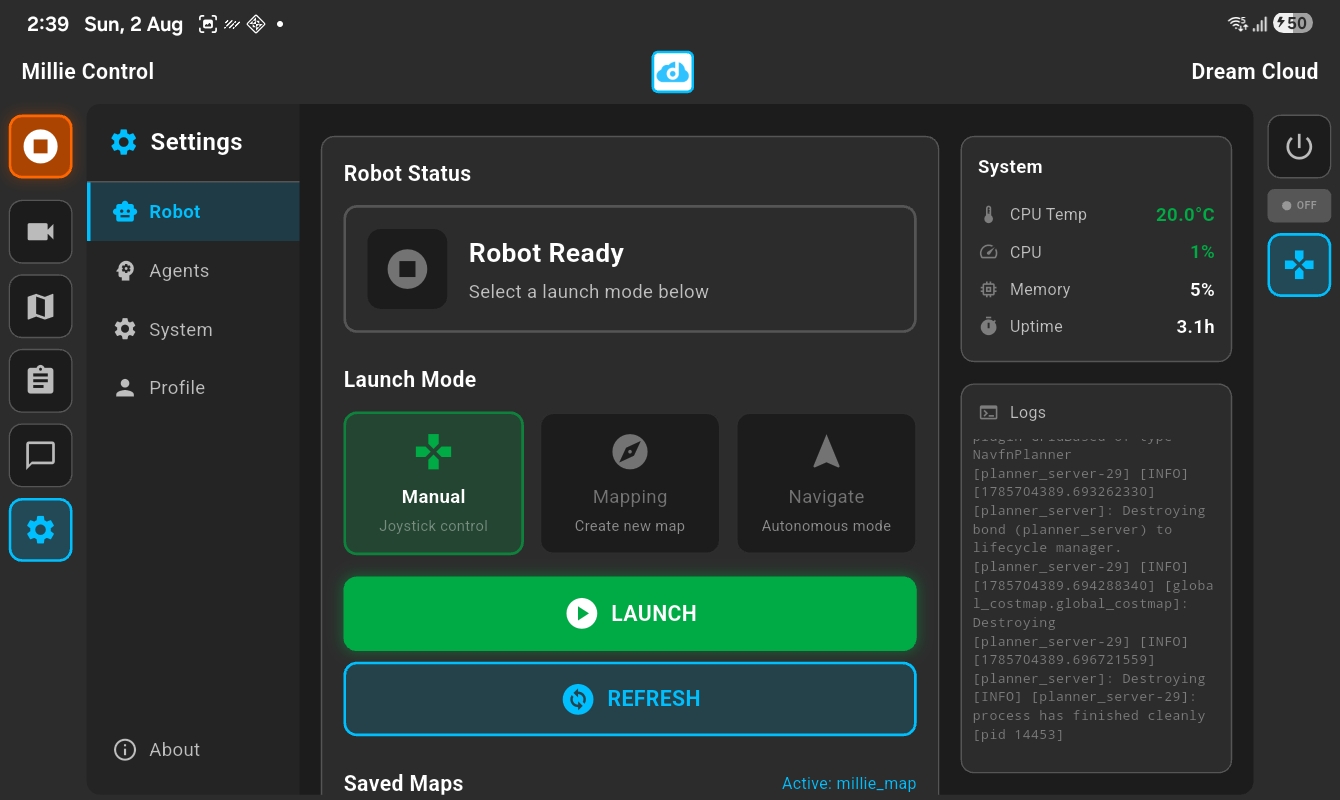
Manual Mode
Take direct control of the robot with a virtual joystick. Perfect for exploring new spaces, precise positioning, or when you want hands-on control.
Manual mode allows you to drive the robot without loading a map. Use this when you first set up the robot or need to reposition it before starting autonomous navigation.
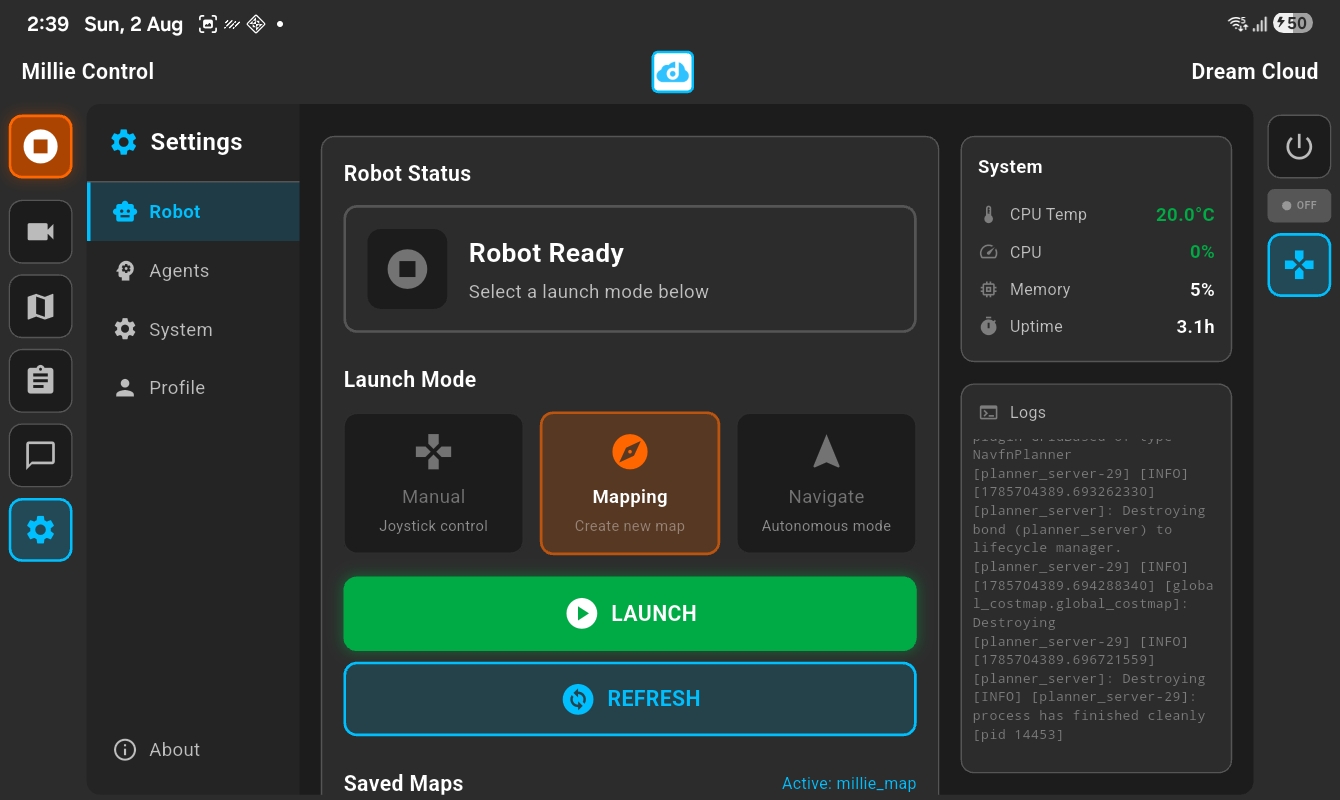
Mapping Mode
Create new maps by driving the robot around your space. The LiDAR scanner builds a detailed floor plan as you explore using SLAM (Simultaneous Localization and Mapping).
Drive slowly and thoroughly to capture all the details. The map updates in real-time so you can see your progress. Once you've covered the area, save the map for autonomous navigation.
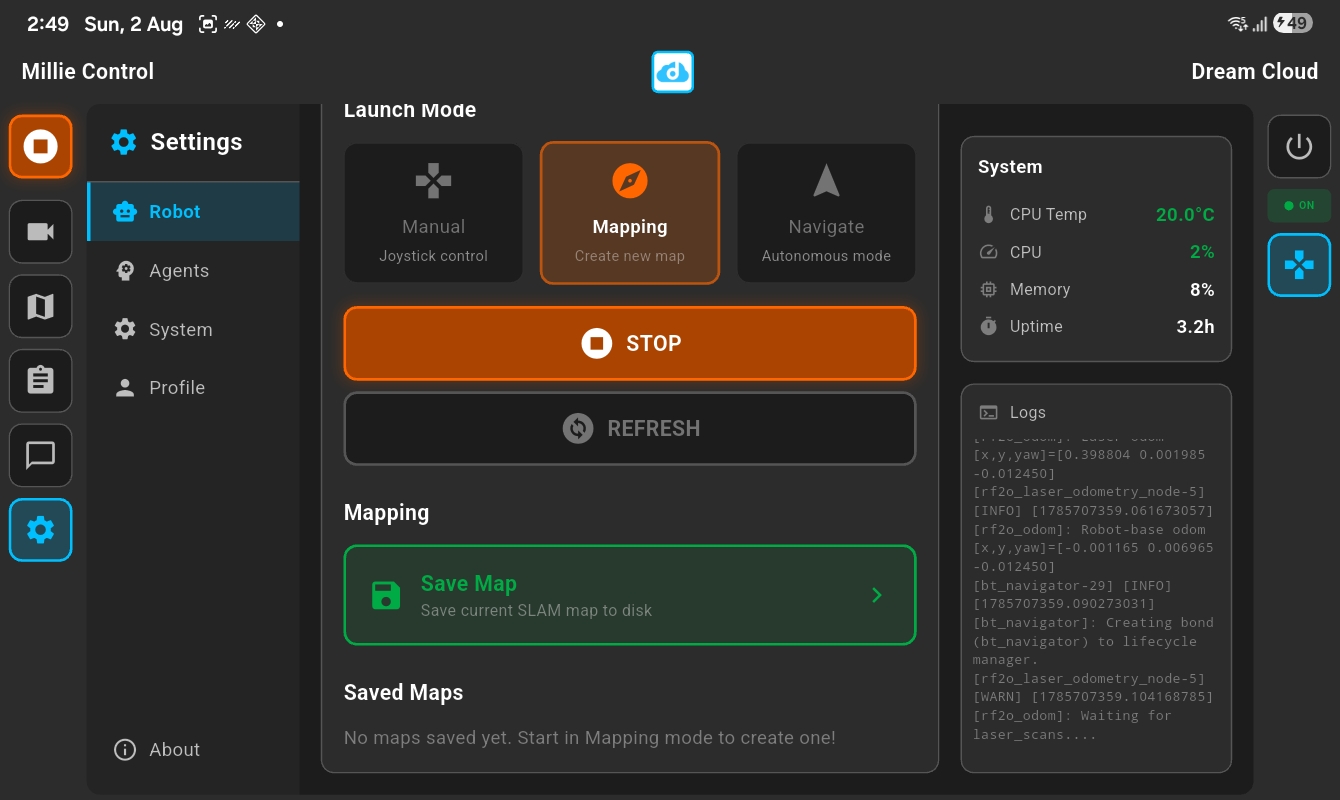
Save Map
When you're done exploring, tap Save Map to store the SLAM data. The map persists across restarts so you only need to map your space once.
When you switch to Navigate mode, the saved map loads automatically. The robot uses this map for autonomous navigation and waypoint planning.
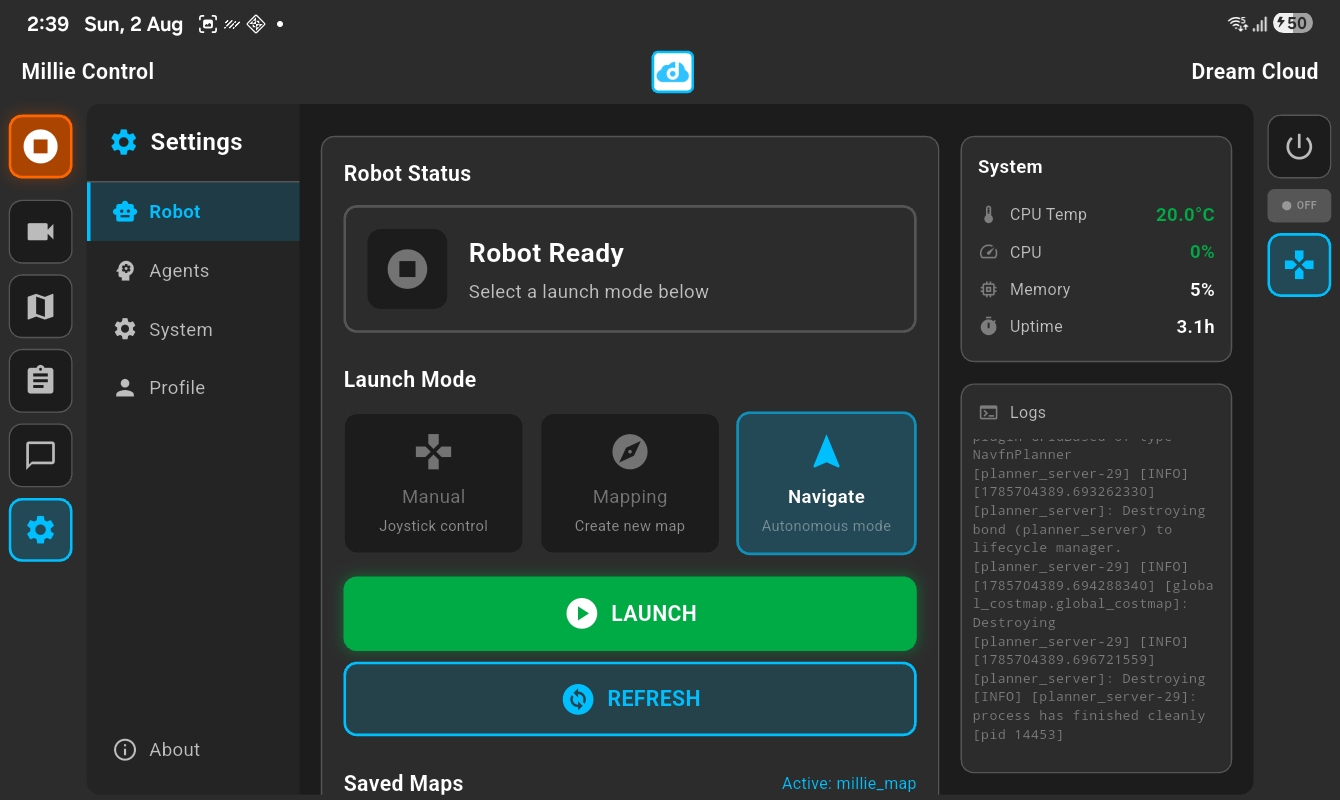
Navigate Mode
Let the robot drive itself. With a saved map loaded, the robot uses Nav2 for autonomous path planning and obstacle avoidance.
Tap anywhere on the map to send the robot there, or use saved waypoints for quick navigation. The robot plans optimal routes and automatically avoids obstacles detected by the LiDAR.
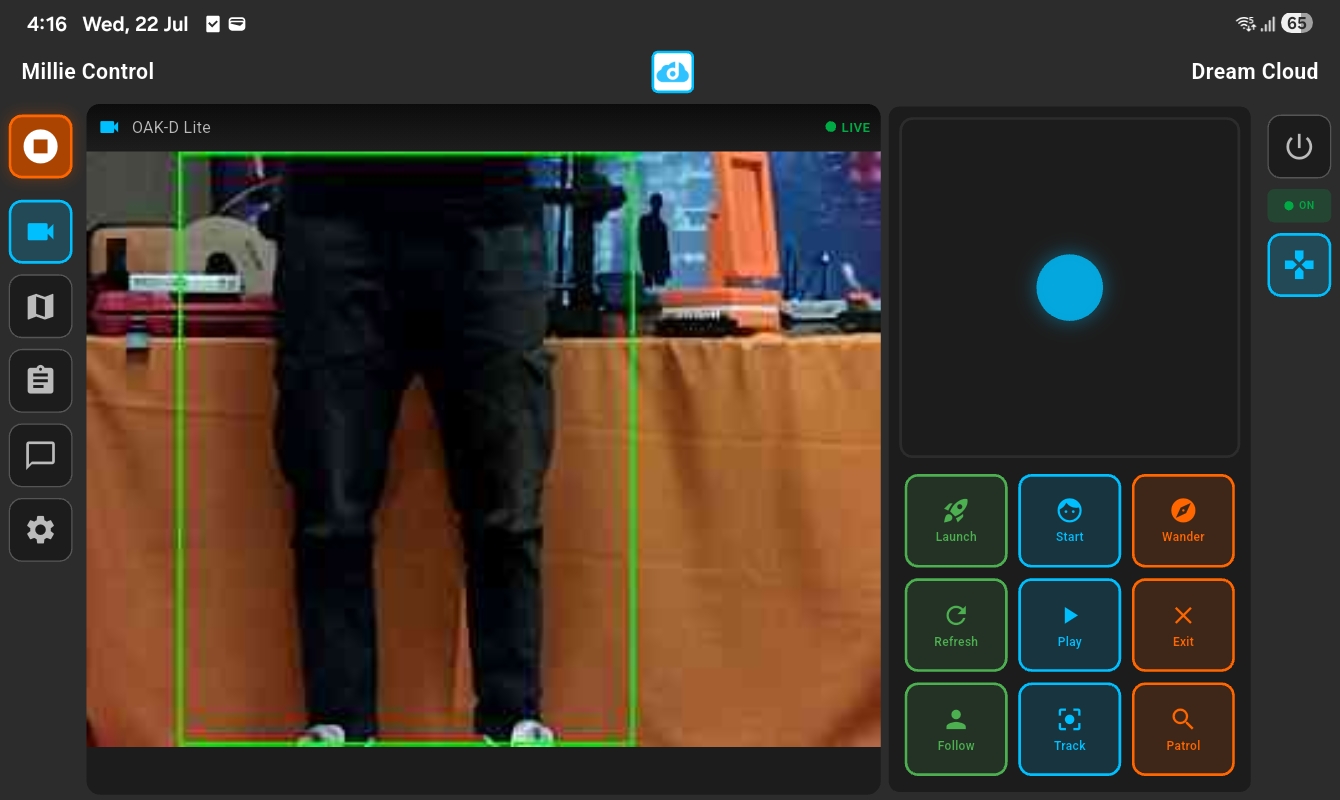
Live Camera Feed
Stream video from the OAK-D Lite depth camera in real-time. The camera supports person detection with bounding box overlays, helping the robot identify and track people in its environment.
The detection overlay can be toggled on or off in settings. When enabled, the camera draws boxes around detected people with confidence scores and distance estimates.
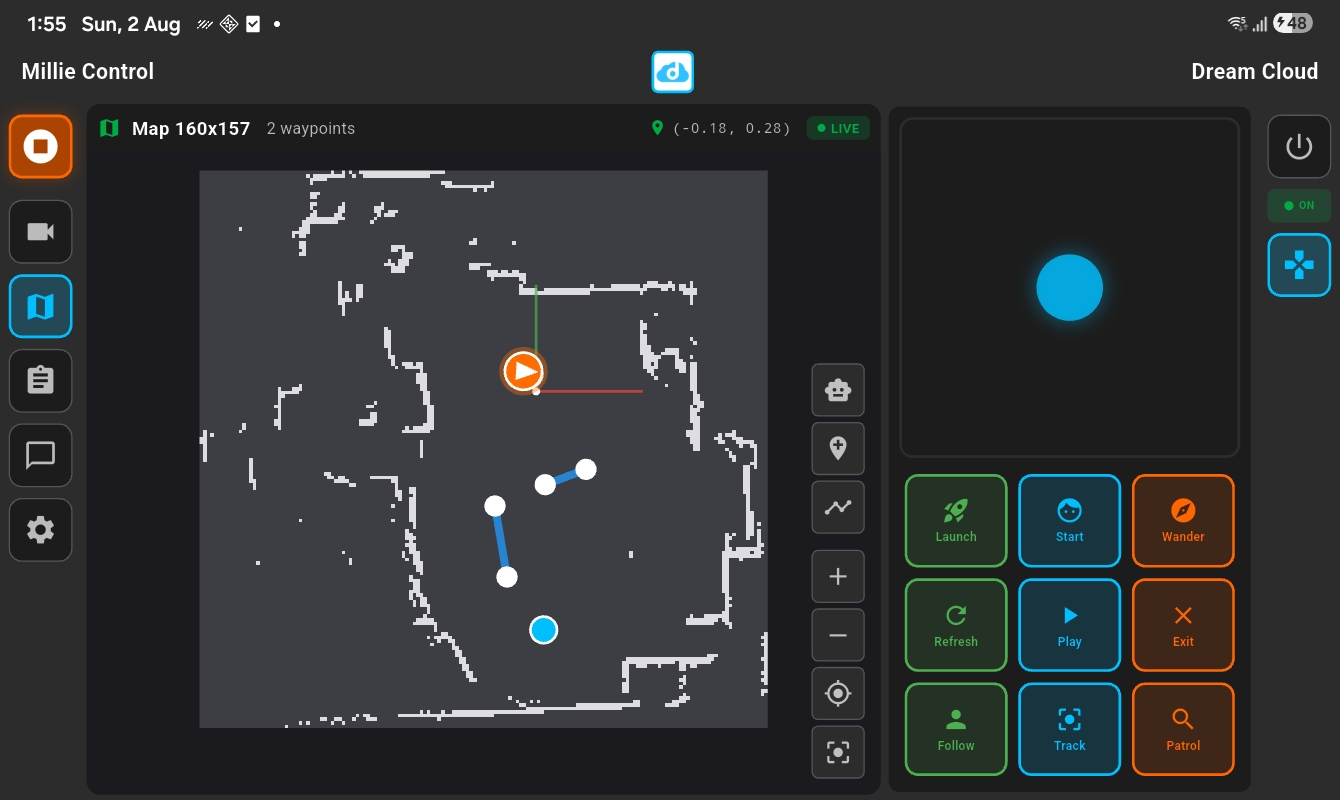
Interactive Map
View the robot's SLAM-generated map with waypoints and navigation lanes. Tap anywhere on the map to send the robot to that location, or use saved waypoints for quick navigation.
Create waypoints to mark important locations, then draw lanes between them to define preferred paths. The robot follows these lanes when navigating between points.
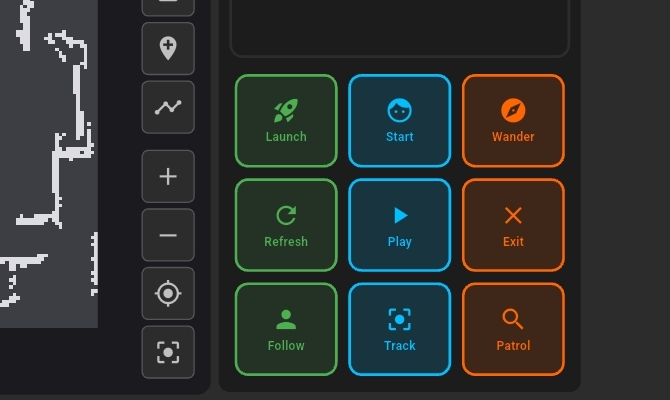
Autonomous Modes
Wander explores randomly, picking new directions when it encounters obstacles. Follow detects a person using the camera and follows them around the space, maintaining a comfortable distance.
Track rotates to keep a person centered in the camera without moving closer. Patrol combines wander and follow - the robot explores until it detects someone, then switches to following them.
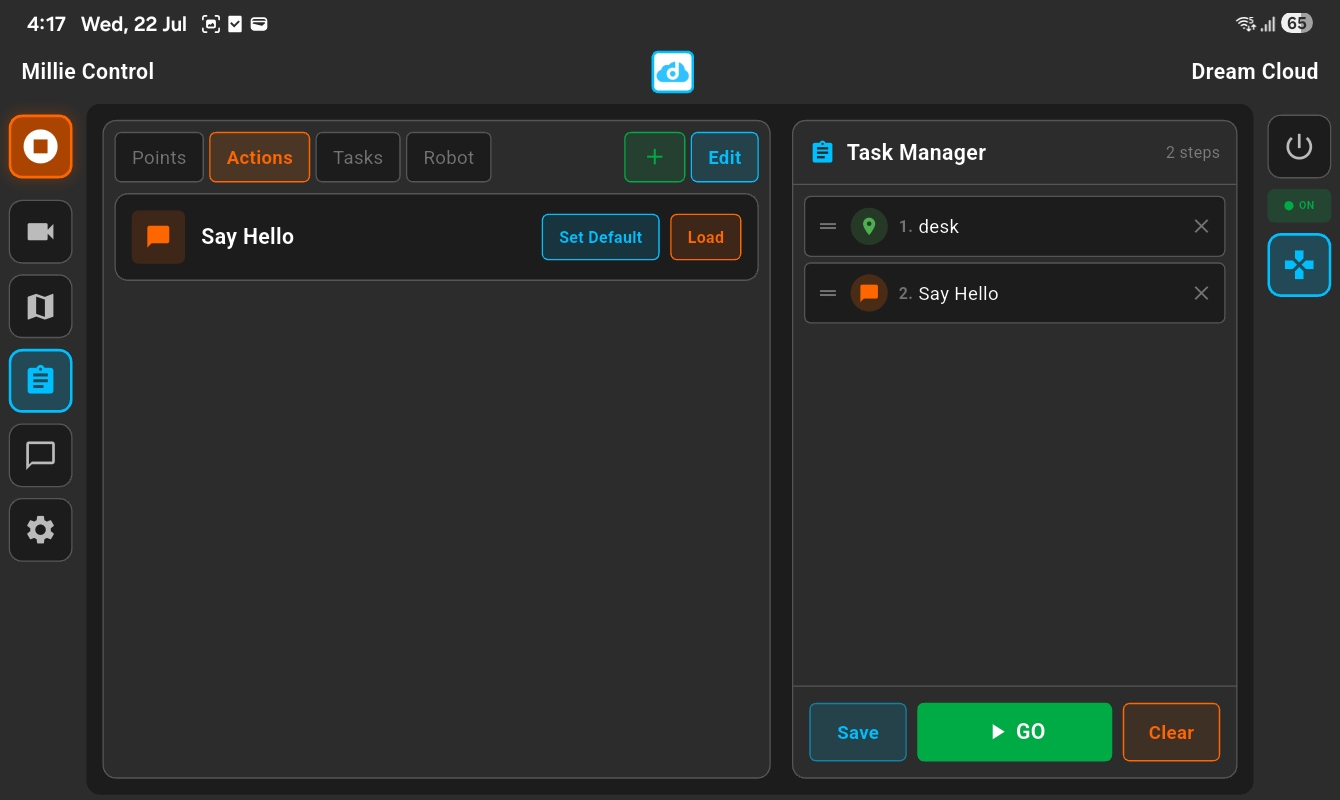
Task Manager
Build workflows by combining navigation waypoints with actions. Create sequences like 'go to the office, deliver a message' and execute them with a single tap.
Drag waypoints and actions into the task queue, reorder them as needed, then press play. The robot executes each step in sequence, navigating to locations and performing actions.
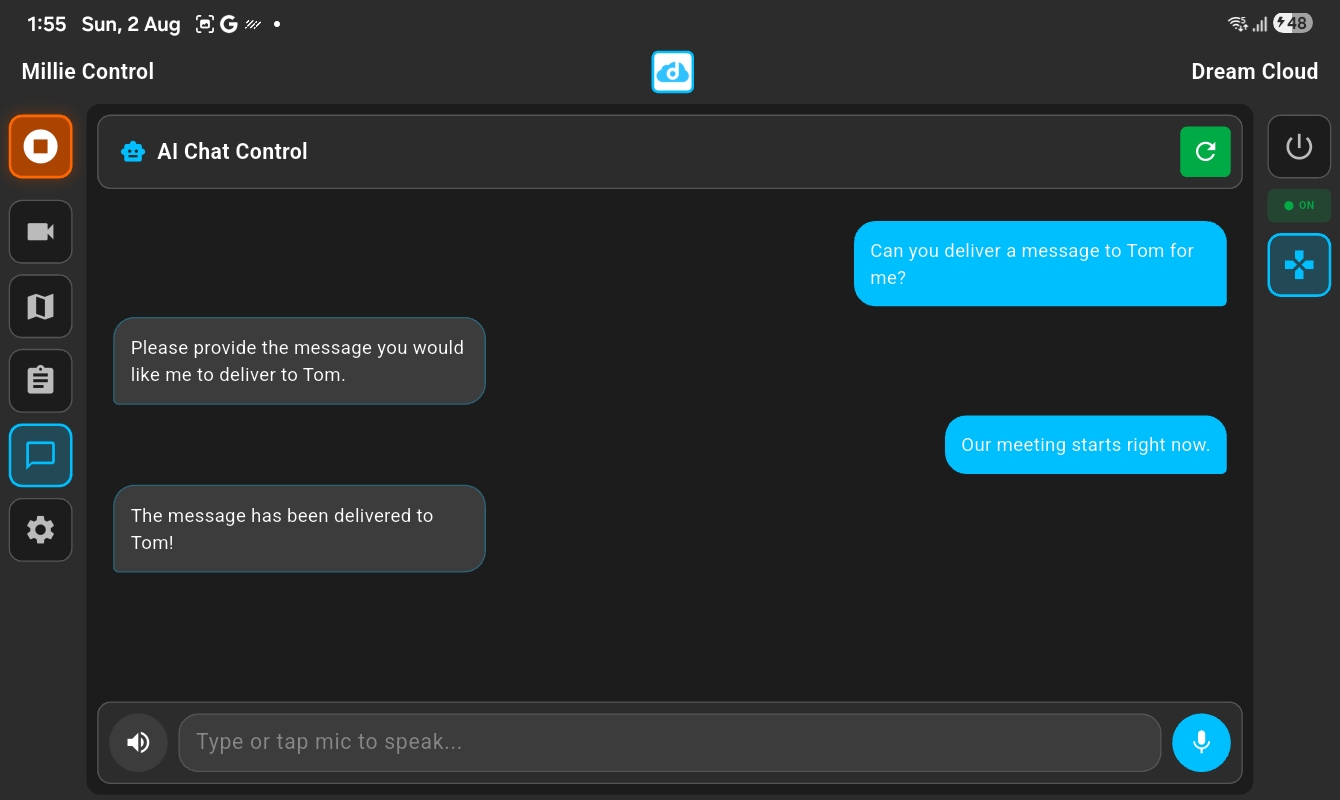
AI Chat Control
Control the robot using natural language. Ask it to deliver messages, navigate to locations, or perform tasks. Type or tap the microphone to speak.
The AI understands your intent and builds workflows automatically. Say 'tell Tom the meeting starts now' and the robot navigates to Tom's location and delivers the message.
Robot Settings
Monitor the robot's health with real-time system stats. View CPU temperature, memory usage, and uptime at a glance.
The logs panel shows live output from ROS2 nodes, useful for debugging or monitoring navigation progress. Use this to verify the robot is running smoothly.
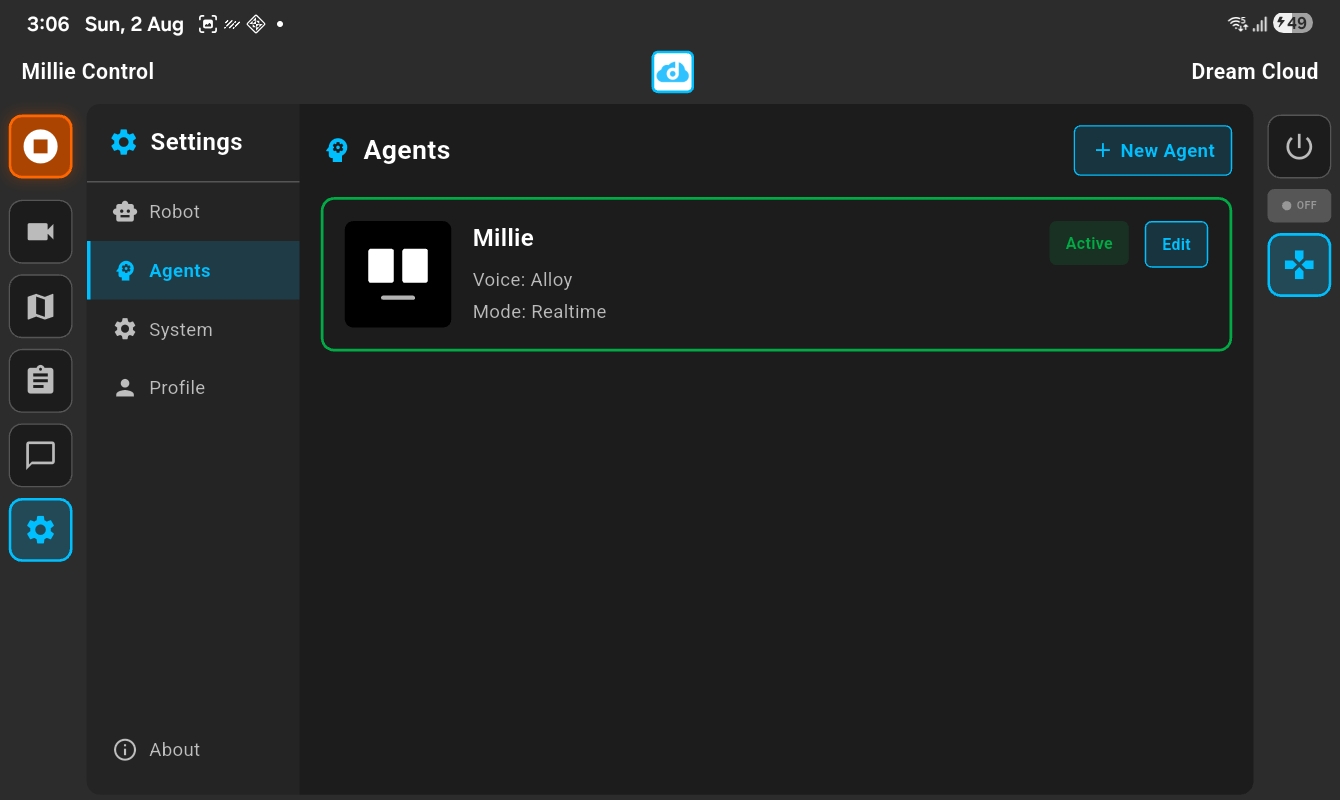
Create Agents
Create multiple AI agents with different personalities. Each agent can have its own name, voice, and behavior for different use cases.
Tap New Agent to create a new personality, or select an existing agent to edit it. Set one agent as active to use it on the robot.
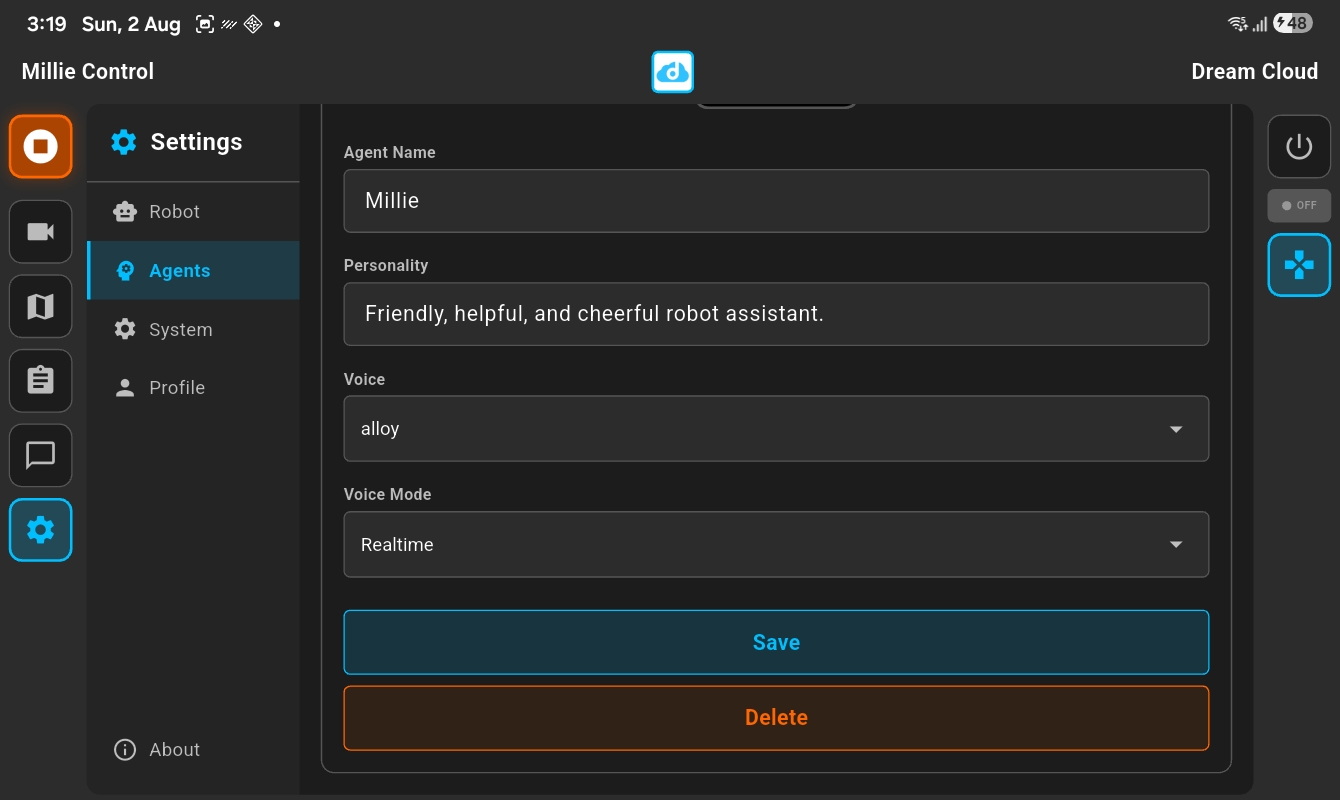
Agent Settings
Customize each agent's personality. Set the name and personality description that shapes how the robot speaks and behaves.
Choose from different voices and voice modes. The agent settings sync to the face tablet, so changes take effect on the robot immediately.
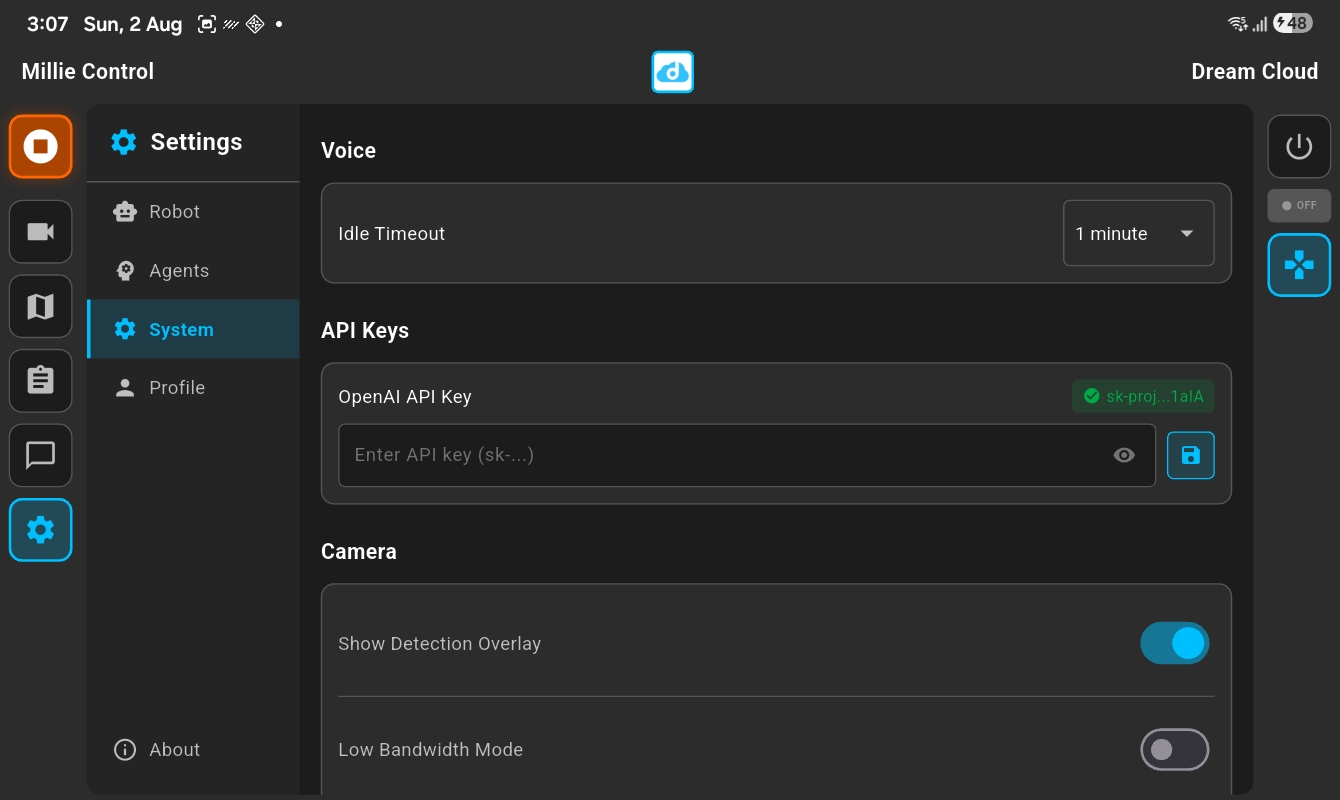
System Settings
The robot uses OpenAI for voice conversations. Get an API key from platform.openai.com, copy it, and paste it into the API key field. Tap save to store it securely on the device.
You'll need a key with access to the Realtime API for voice features. The key is stored locally and never leaves the device except to authenticate with OpenAI.
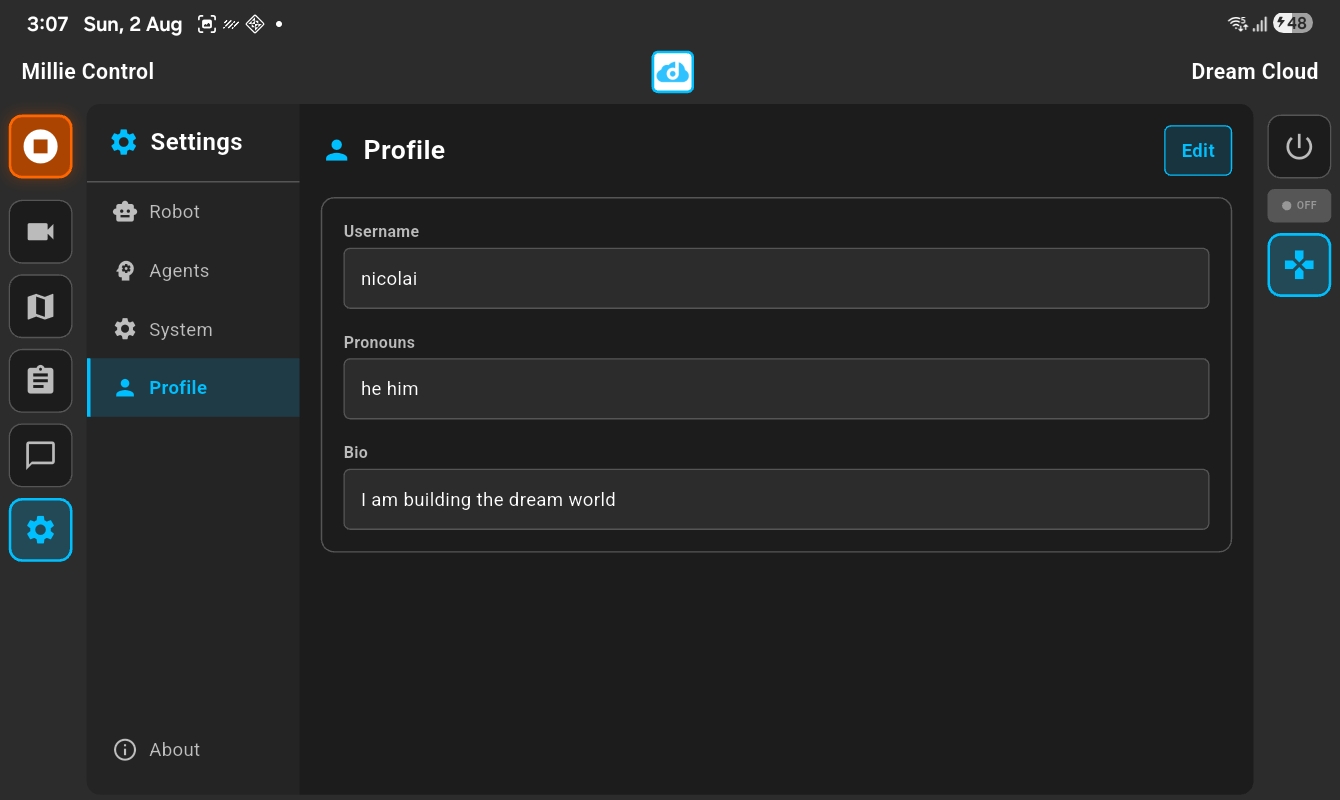
Profile Settings
Set your user profile so the robot knows who you are. Add your name, pronouns, and a short bio.
The robot uses this information to personalize conversations and remember context about you across sessions.
Quick
setup
Requirements
- Flutter 3.9 or later
- Android tablet or iPad
- Millie Bot on the same network
- OpenAI API key (for chat features)
Install
# Clone the repo
git clone https://github.com/DreamCloudClub/millie_control.git
# Install dependencies
flutter pub get
# Run on your device
flutter run
Full documentation and setup guides available on GitHub.
View README →