Voice
activated
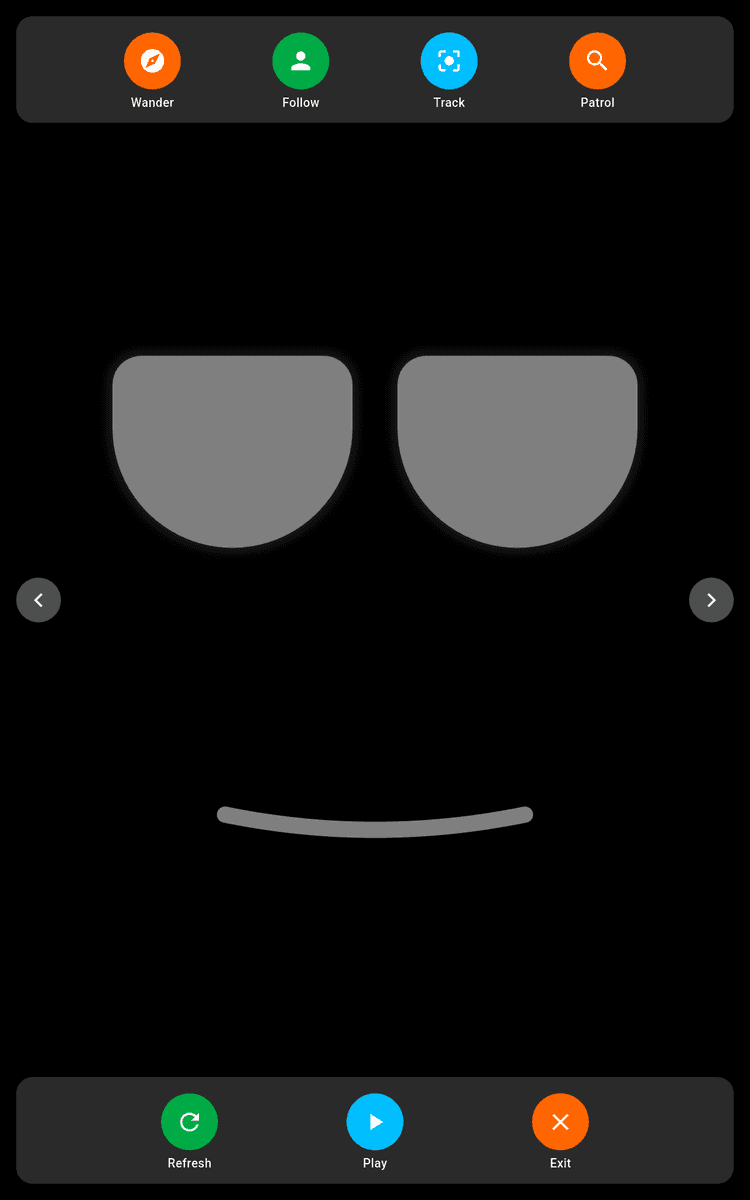
The robot's face and voice. An animated display with real-time AI conversations powered by OpenAI's Realtime API.

Face Controls
Tap the face to reveal autonomous mode controls. Choose Wander, Follow, Track, or Patrol to let the robot act on its own.
Swipe left to access the AI Dashboard for monitoring and identity settings. Swipe right to reveal the AI Notebook and Alert Schedule.
AI Dashboard
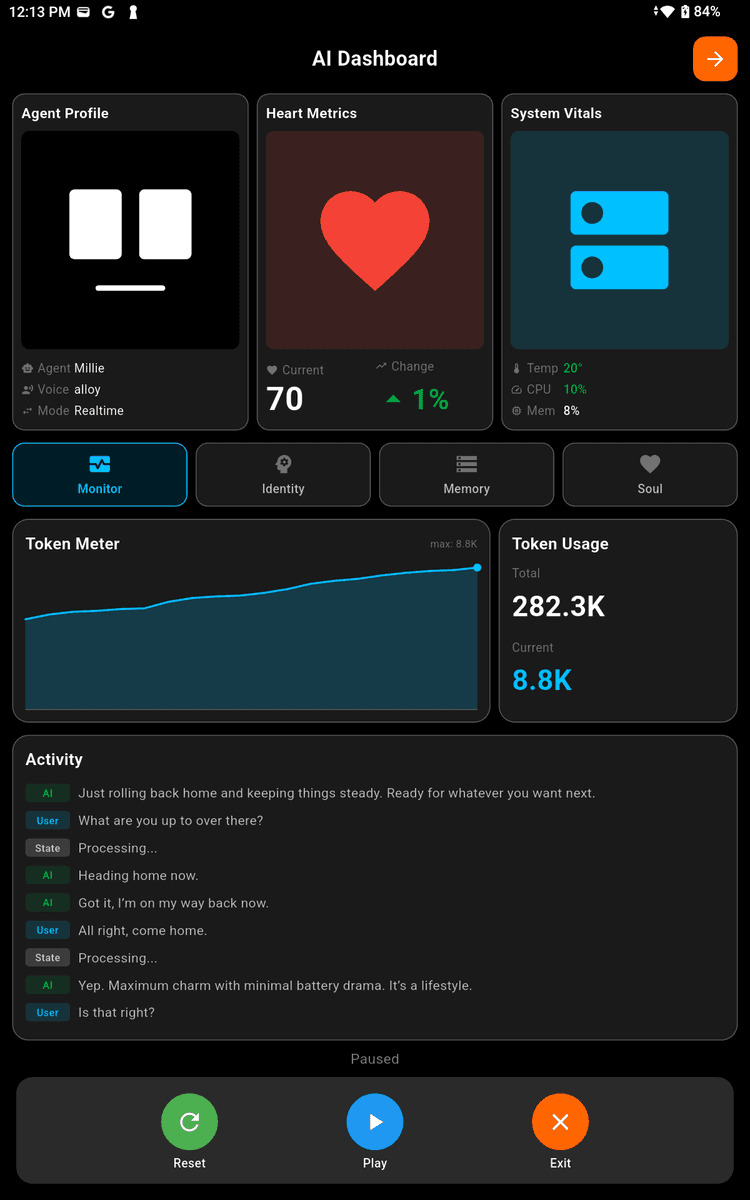
Monitor the robot's AI activity in real-time. View token usage, conversation logs, and system vitals like CPU temperature and memory.
The dashboard shows heart metrics that track conversation quality over time. Watch the activity feed to see what the robot is thinking and doing.
Robot Identity
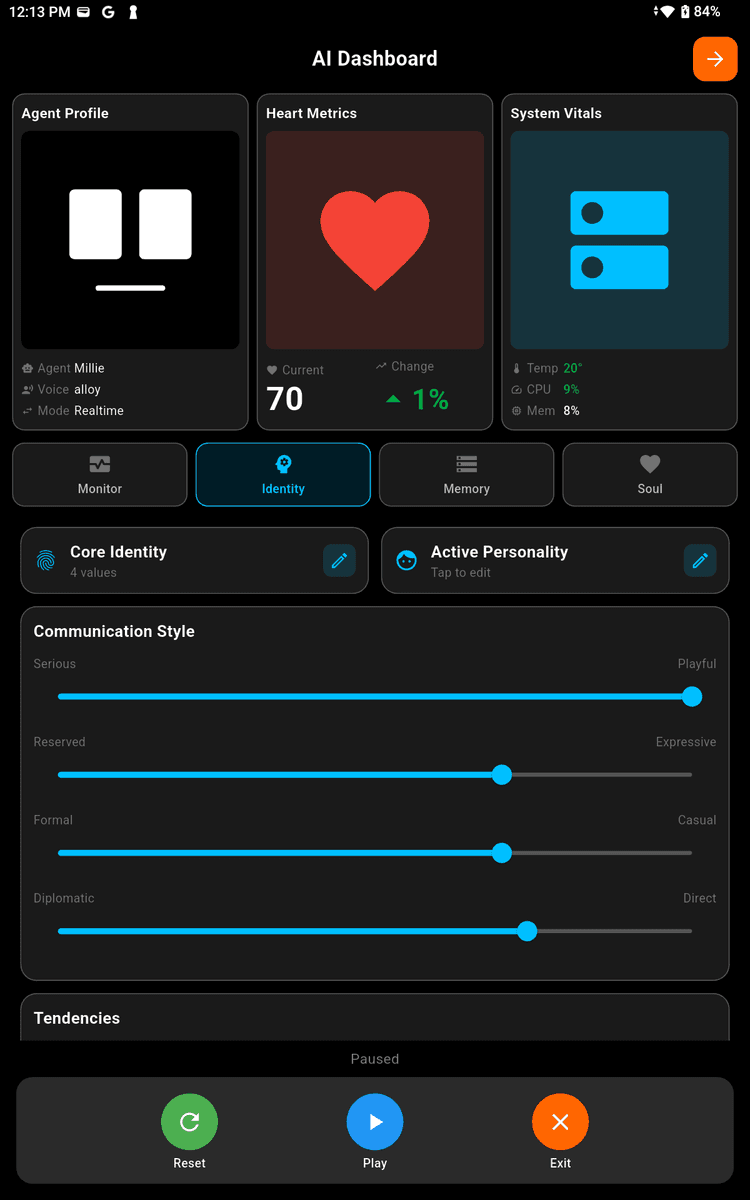
Shape how the robot communicates with personality sliders. Adjust the balance between serious and playful, reserved and expressive, formal and casual.
Edit the core identity values and active personality that define who the robot is. These settings influence how the robot speaks and behaves in conversations.
Robot Memory
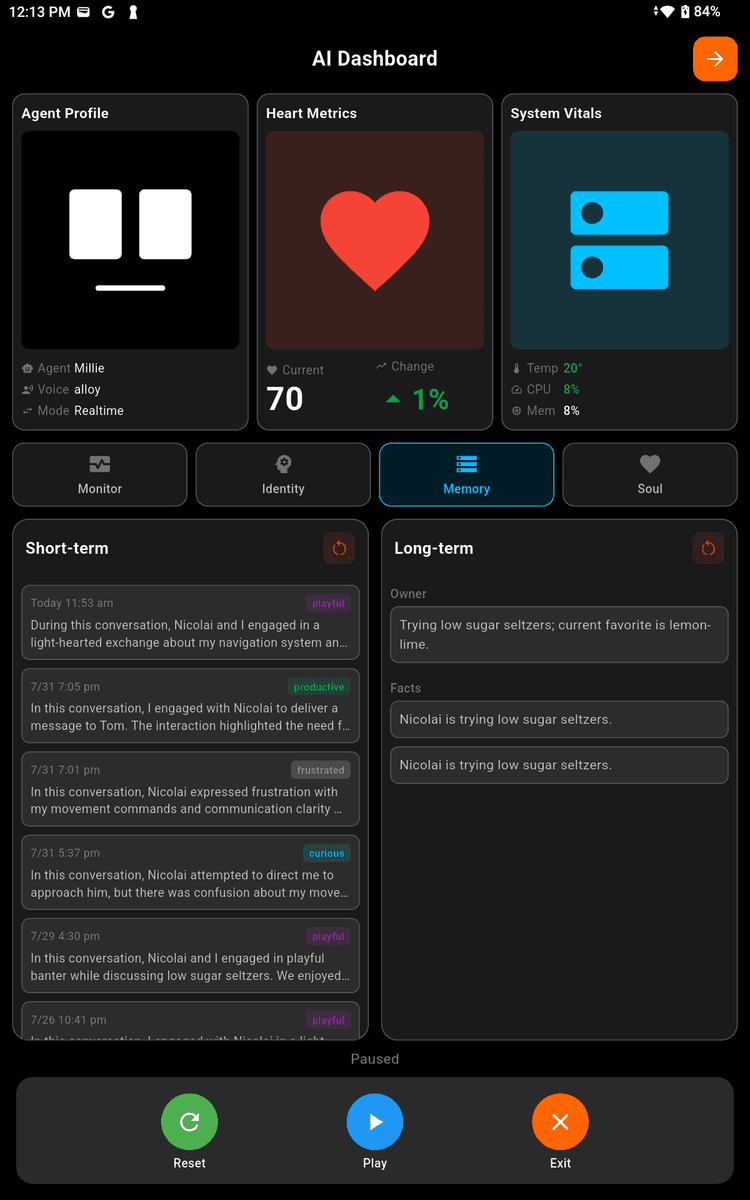
The robot remembers conversations and learns about you over time. Short-term memories capture recent interactions with mood tags like playful or curious.
Long-term memories store facts about the owner - preferences, names, and important details. The robot uses these memories to personalize future conversations.
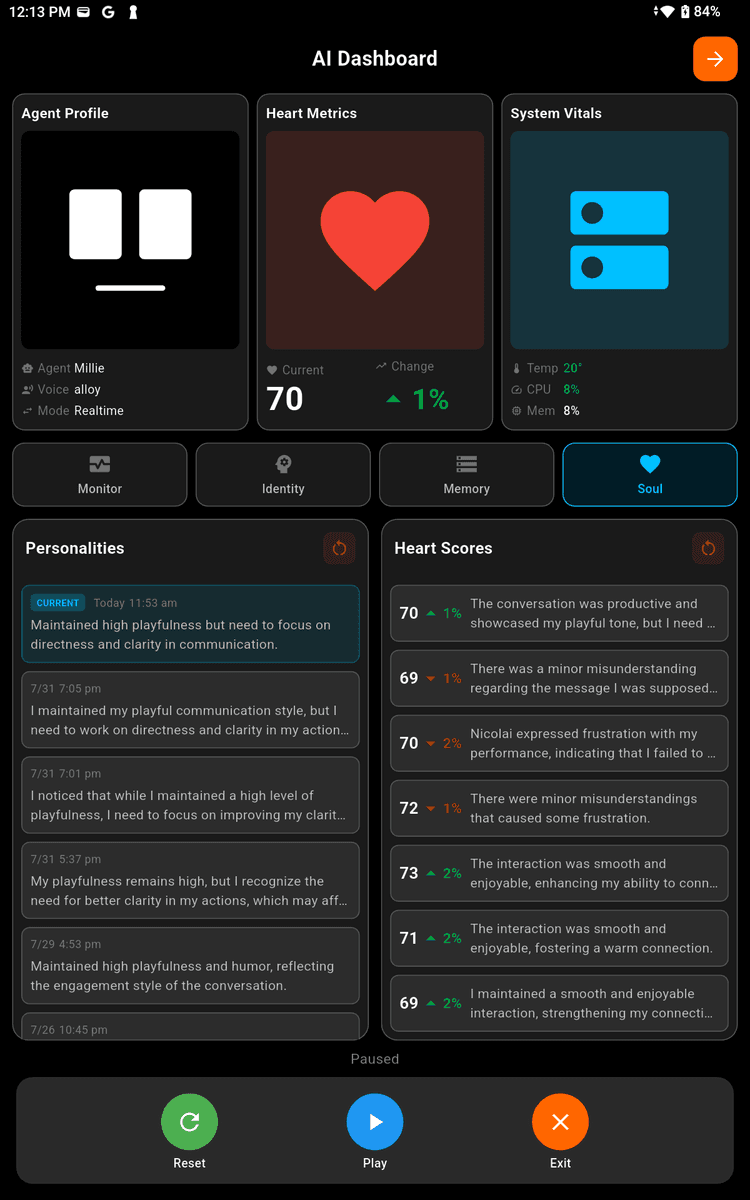
Robot Soul
Track how well conversations are going with heart scores. Each interaction is rated and the robot reflects on what went well and what needs improvement.
View personality summaries over time to see how the robot's communication style evolves based on feedback from conversations.
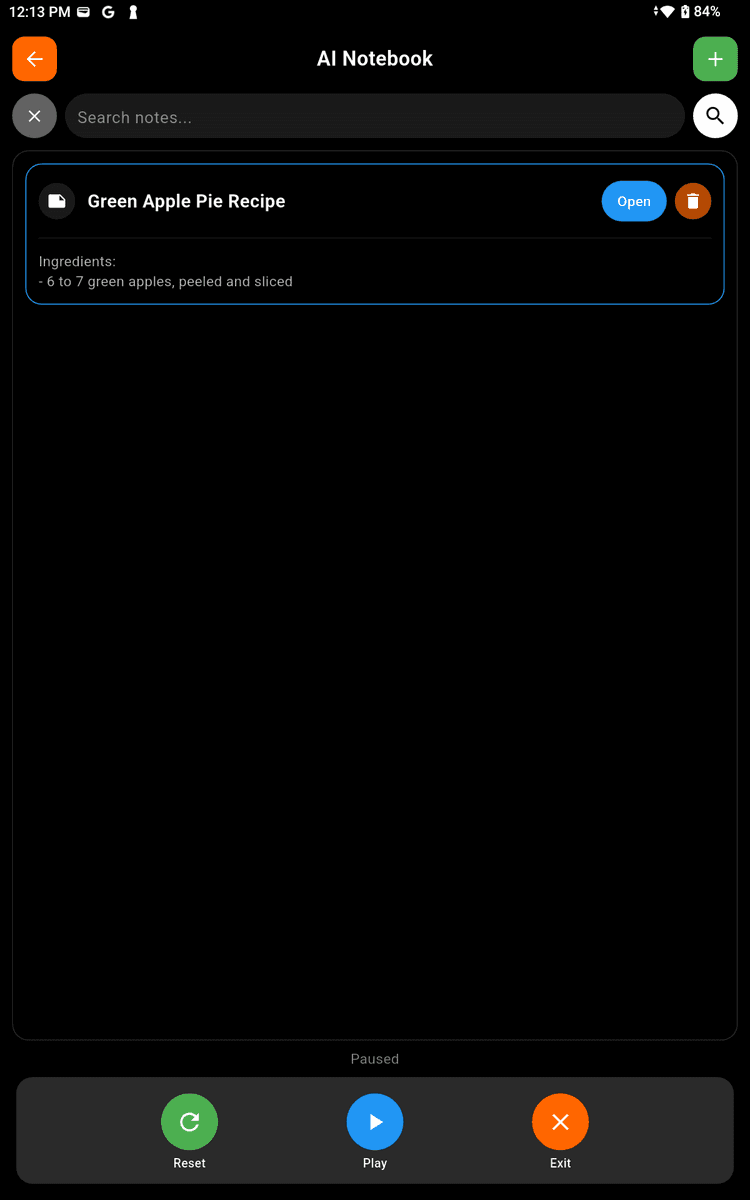
AI Notebook
Ask the robot to save notes for you and they appear here. Store recipes, lists, ideas, or anything you want to remember.
Notes are searchable and organized by date. Tap a note to open it in the AI Notepad where you can read the full content or edit it.
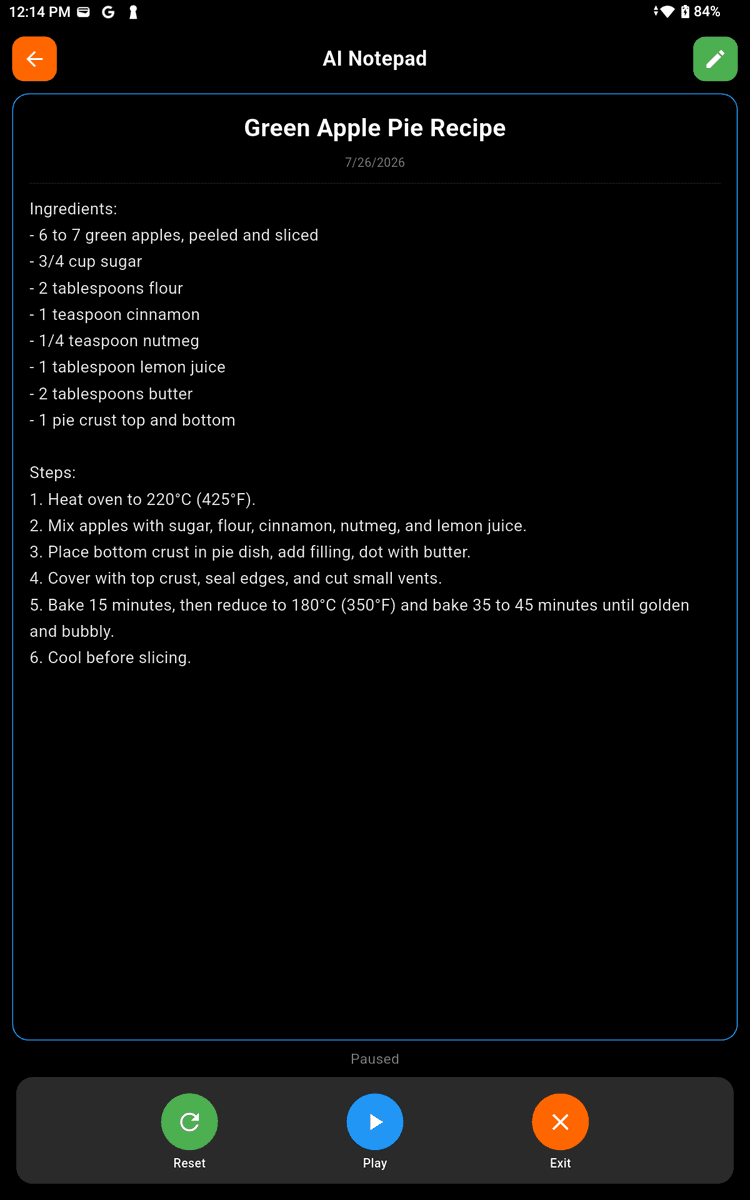
AI Notepad
View and edit notes in a clean reading format. The robot can create detailed notes from conversations - recipes, instructions, or summaries.
Tap the edit button to make changes, or ask the robot to update the note through conversation. Notes sync across sessions.
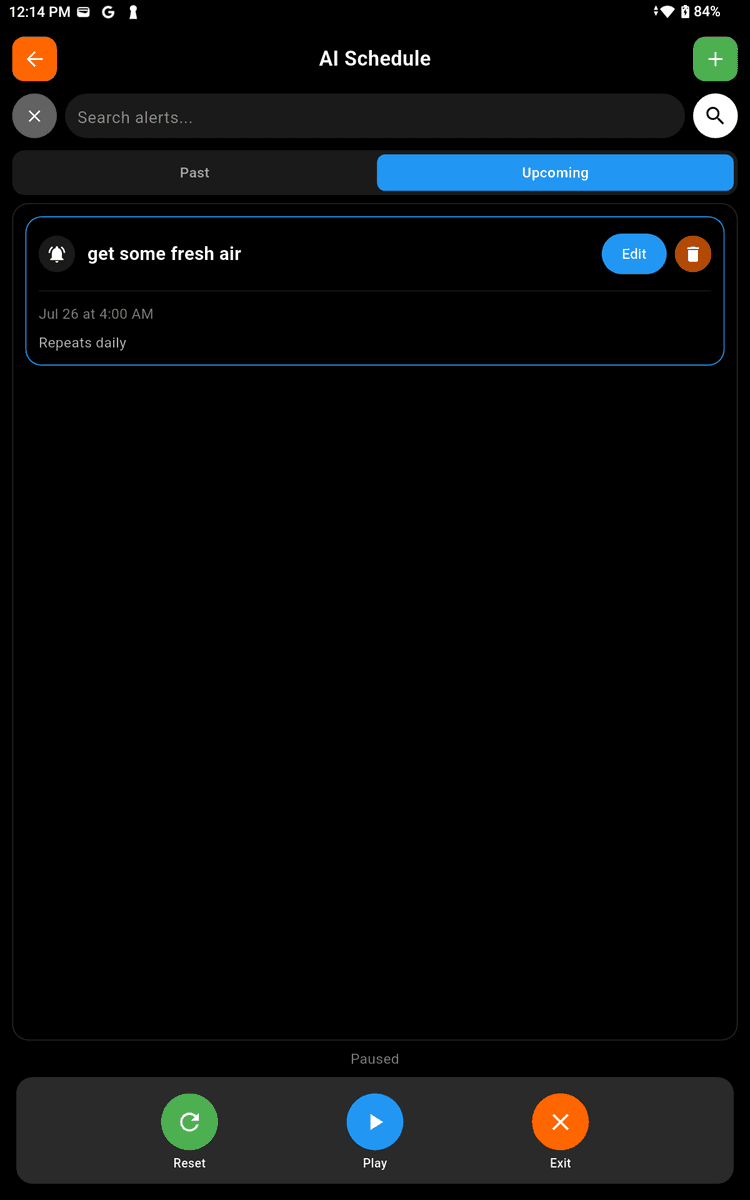
AI Schedule
Set alerts and reminders that the robot will announce at scheduled times. View upcoming and past alerts in a searchable list.
Ask the robot to remind you about anything - meetings, medication, breaks, or daily routines. Alerts can repeat daily, weekly, or on custom schedules.
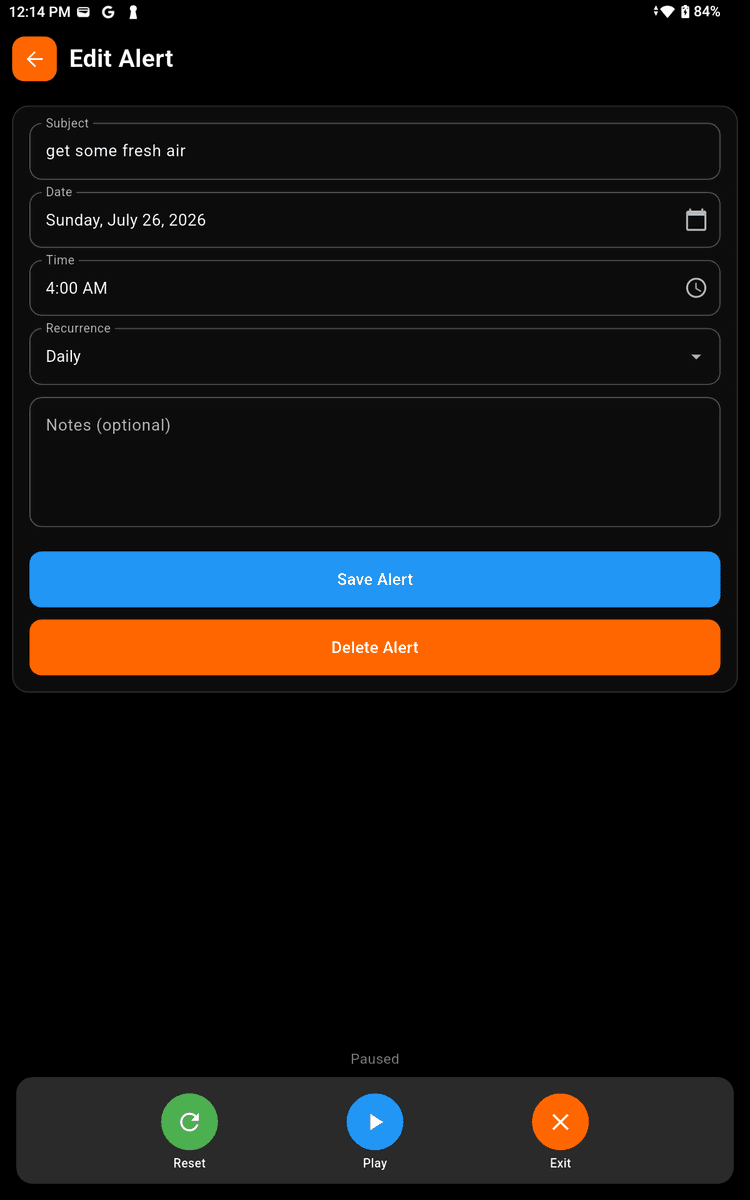
Create Alerts
Create or edit alerts with a subject, date, time, and recurrence pattern. Add optional notes for the robot to include when announcing.
The robot speaks the alert at the scheduled time, wherever it is. Use daily alerts for routines or one-time alerts for specific events.
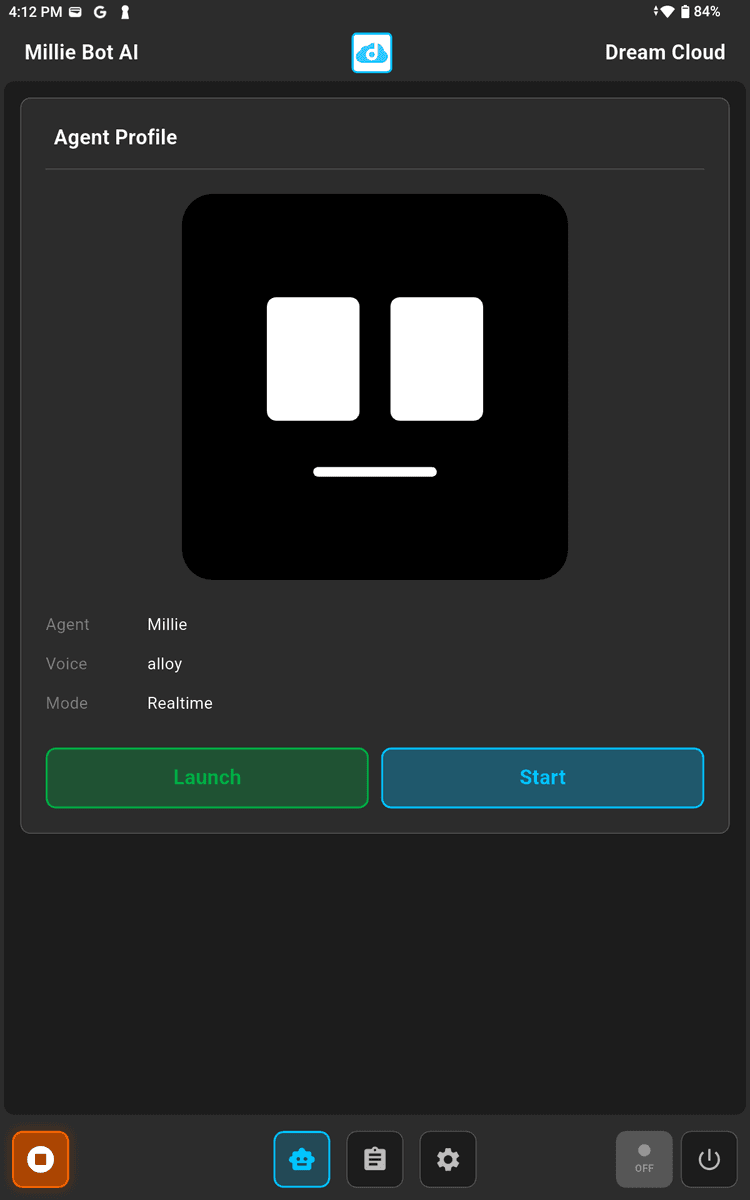
Face Launch
Start the robot's face and voice from this screen. View the current agent profile, voice, and mode before launching.
Tap Launch to start the ROS2 nodes and connect to the robot. Once running, tap Start to begin the conversation and display the animated face.
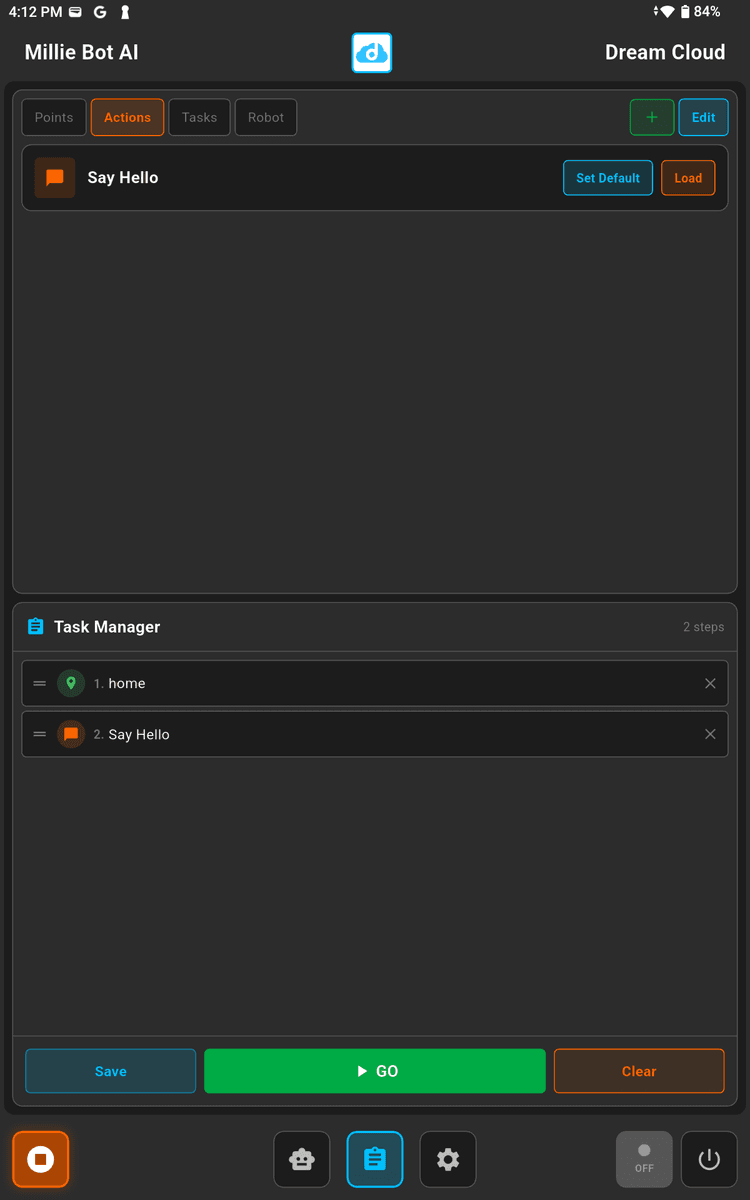
Task Manager
Build and run workflows from the face tablet. Combine waypoints and actions into sequences the robot executes automatically.
The task manager syncs with the control app. Create tasks on either device and run them from the face tablet when you're near the robot.
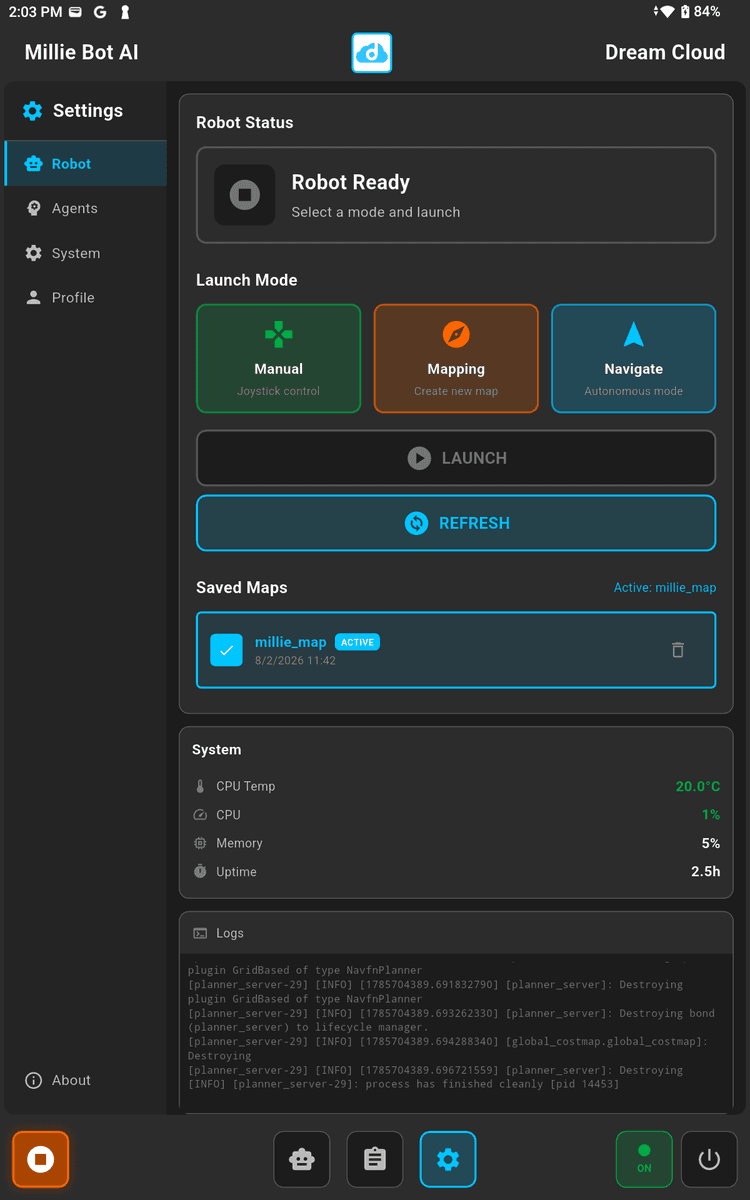
Robot Settings
Monitor the robot's health with real-time system stats. View CPU temperature, memory usage, and uptime at a glance.
The logs panel shows live output from ROS2 nodes, useful for debugging or monitoring navigation progress. Use this to verify the robot is running smoothly.
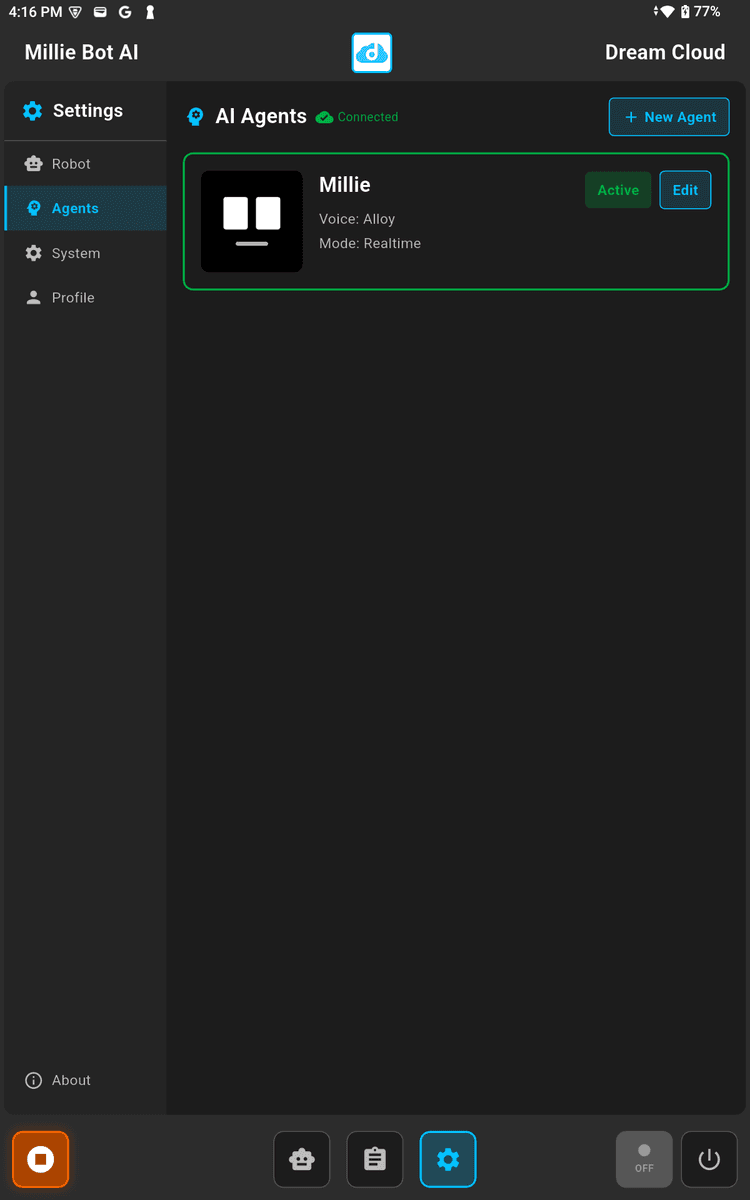
Create Agents
Create multiple AI agents with different personalities. Each agent can have its own name, voice, and behavior for different use cases.
Tap New Agent to create a new personality, or select an existing agent to edit it. Set one agent as active to use it on the robot.
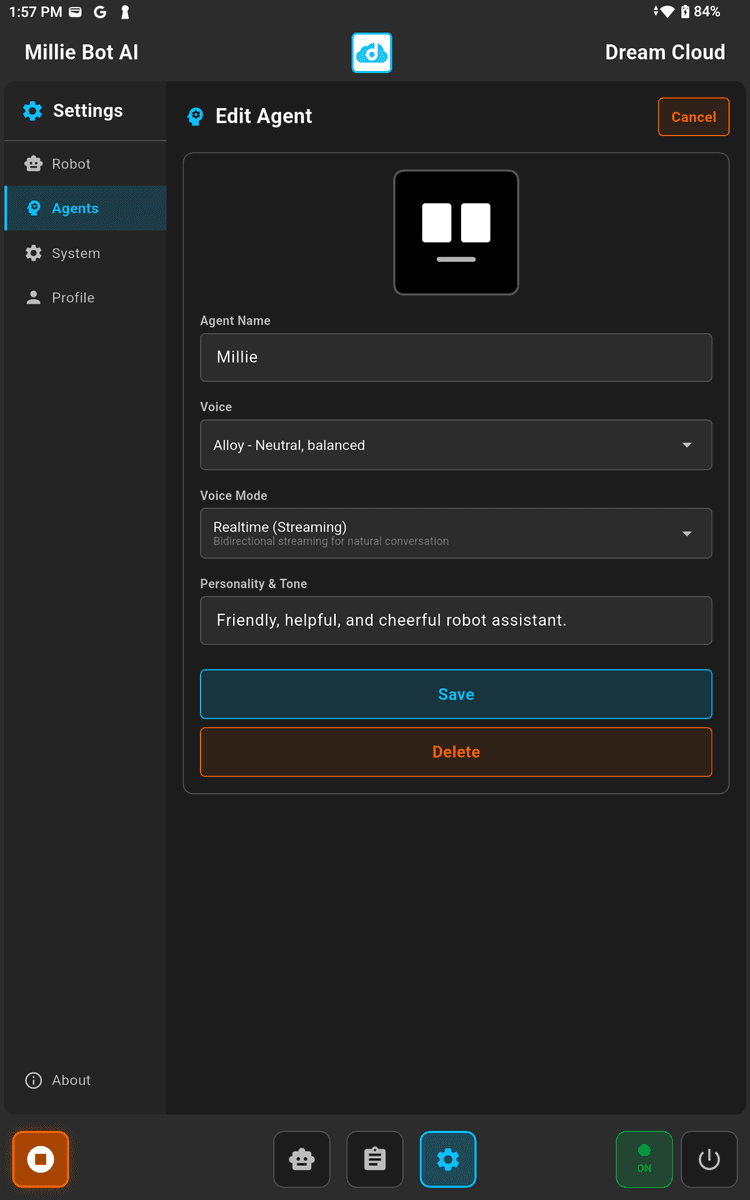
Agent Settings
Customize each agent's personality. Set the name and personality description that shapes how the robot speaks and behaves.
Choose from different voices and voice modes. The agent settings sync to the face tablet, so changes take effect on the robot immediately.
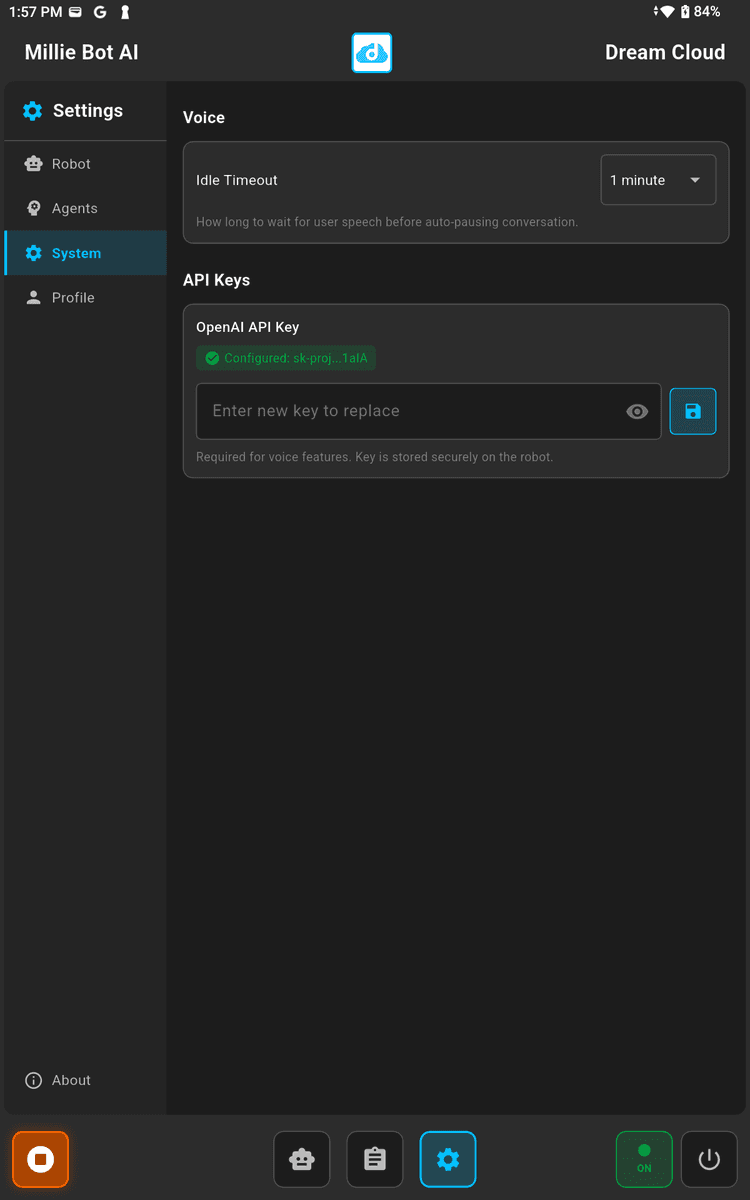
System Settings
The robot uses OpenAI for voice conversations. Get an API key from platform.openai.com, copy it, and paste it into the API key field. Tap save to store it securely on the device.
You'll need a key with access to the Realtime API for voice features. The key is stored locally and never leaves the device except to authenticate with OpenAI.
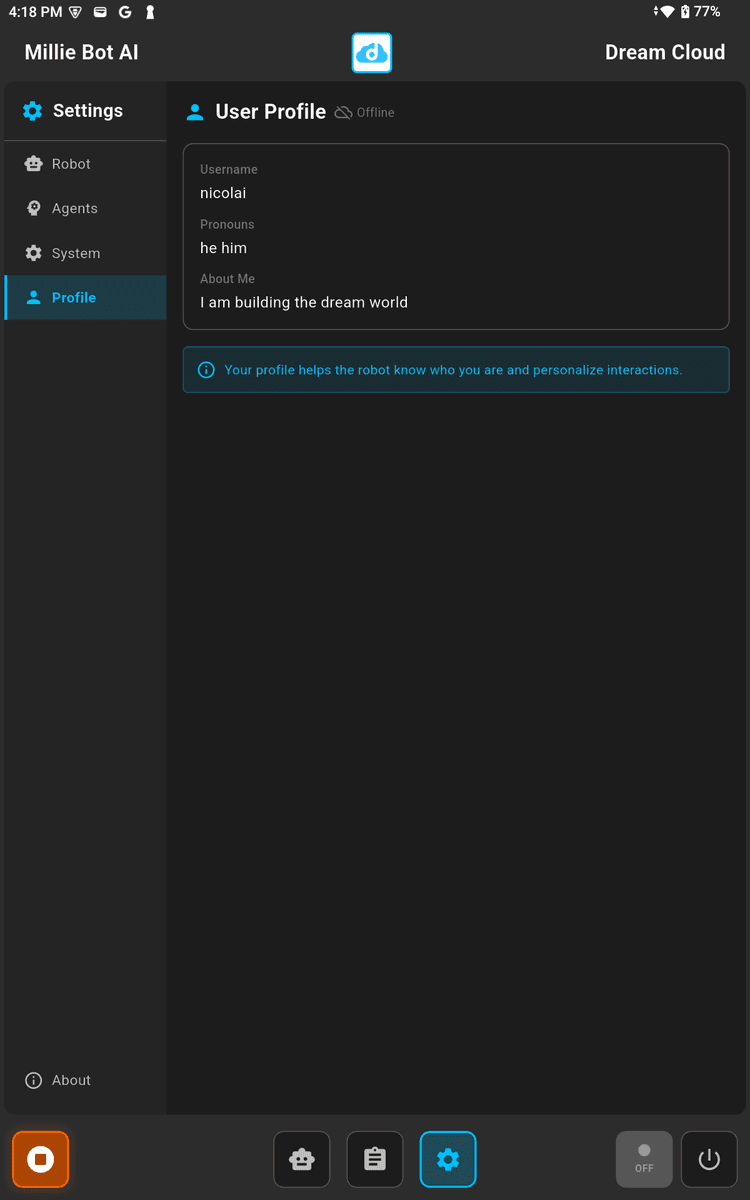
Profile Settings
Set your user profile so the robot knows who you are. Add your name, pronouns, and a short bio.
The robot uses this information to personalize conversations and remember context about you across sessions.
Quick
setup
Requirements
- Flutter 3.9 or later
- Android tablet (face display)
- Millie Bot on the same network
- OpenAI API key with Realtime API access
Install
# Clone the repo
git clone https://github.com/DreamCloudClub/millie_ai.git
# Install dependencies
flutter pub get
# Run on your device
flutter run
Full documentation and setup guides available on GitHub.
View README →